วิธีการใส่ World Expansion Sound Pack
เลือกเครื่องที่คุณใช้อยู่:
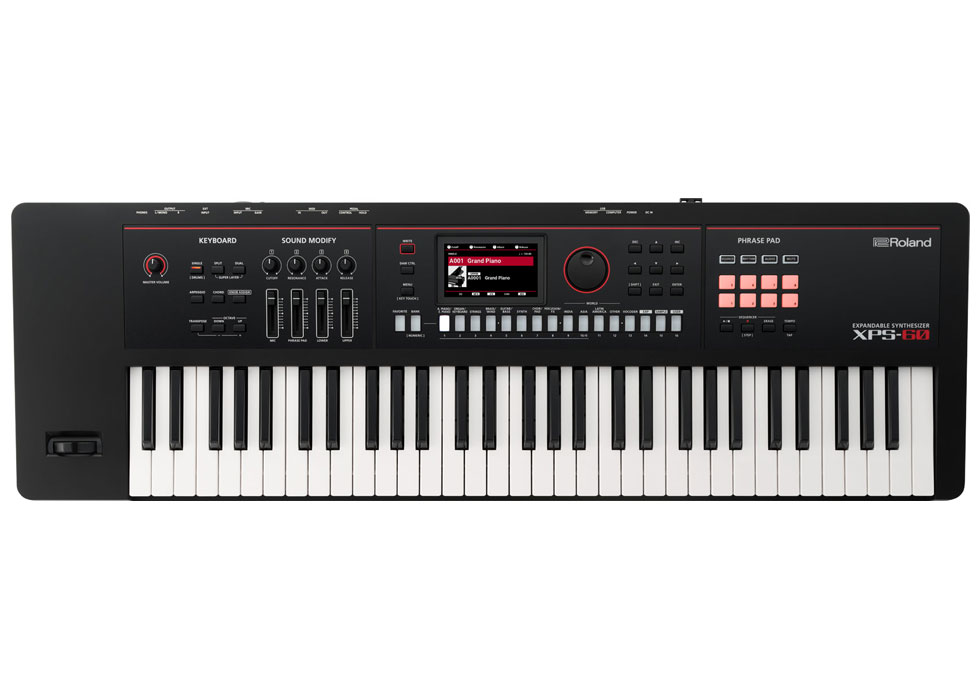
XPS-10X / XPS-60
1. เปิดใช้งาน Roland Cloud Manager
สร้างหรือล๊อคอิน Roland account ที่ทำได้ฟรี, แล้วดาวน์โหลด และเปิด Roland Cloud Manager.
ถ้ายังไม่มี account? คลิกเพื่อสร้าง Roland account.
2. ดาวน์โหลดเสียง
ใน Roland Cloud Managerเลือก XPS-10X หรือ XPS-60 และดาวน์โหลดไฟล์ World Expansion (.exz) เข้าไปในคอมพิวเตอร์.
3. เตรียมไดรฟ์ USB
ถ้าคุณใช้ไดรฟ์ USB drive กับซินธ์ XPS เป็นครั้งแรก, ฟอร์แมทมันกับตัวซินธ์ก่อนใช้งาน
USB requirement: ใช้แฟลชไดรฟ์ USB (32 GB หรือน้อยกว่า).
ใช้ไดรฟ์ USB ใหม่? นี่คือวิธีฟอร์แมทไดรฟ์ USB
4. ก๊อป expansion ลงใน USB
ก๊อปไฟล์ดาว์โหลด .exz file ไปที่หน้าแรกสุด ไม่ใช่ในโฟลเดอร์ไหนๆในไดรฟ์ USB แล้วกด eject ไดรฟ์ USB จากคอมพิวเตอร์.5. ลงไฟล์ซาวด์
เสียบไดรฟ์ USB ในซินธ์ XPS แล้วกดตามนี้: MENU > UTILITY > EXPANSION > INSTALL เลือกไฟล์ World Expansion และกดคอนเฟิร์มตามหน้าจอเพื่อลงซาวด์6. ปิดเครื่อง และเปิดใหม่
หลังจากลงซาวด์เรียบร้อย ปิดและเปิดซินธ์ XPS. เสียงใน World Expansion ก็จะพร้อมเล่น.
ต้องการความช่วยเหลือเพิ่มเติม? ดูคลิปการใส่ซาวด์ใน XPS-10X / XPS-60
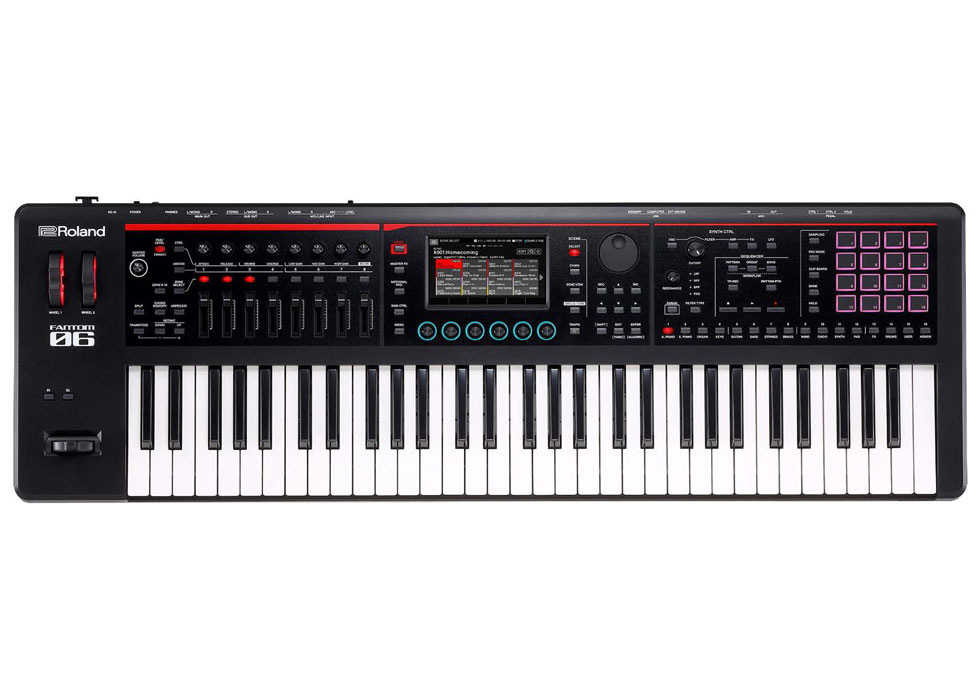
FANTOM-0 Series
1. Get Roland Cloud Manager
Create or sign in to your free Roland account, then download and open Roland Cloud Manager.
Don’t have an account? Click here to create your free Roland account.
2. Download your sounds
Download the World Expansion (.exz) file you want to install using Roland Cloud Manager.
3. Prepare your USB drive
If you’re using the USB drive with your FANTOM-0 for the first time, format it on the instrument before continuing.
Using a new USB? How to format your USB drive
4. Copy the expansion to USB
Copy the .exz file to the root directory (top level) of the USB drive – not inside another folder. Safely eject the USB drive from your computer.
5. Install it
Make sure the FANTOM-0 is switched off, then insert the USB drive into the USB MEMORY port.
Hold down the [TEMPO] button while turning the instrument on. The EXPANSION screen will appear.
Press [E6] (INSTALL), select the World Expansion you want to install, then press [E6] (INSTALL) again. When the confirmation appears, press [E5] (OK).
IMPORTANT: Do not turn off the FANTOM-0 or remove the USB flash drive while the screen indicates “working.”
6. Restart & play
Once installation is complete, restart your FANTOM-0. Your new World Expansion sounds are ready to explore.
Need help? View the full FANTOM-0 installation guide.